Lightfielder | Scripts
00 Toolbar
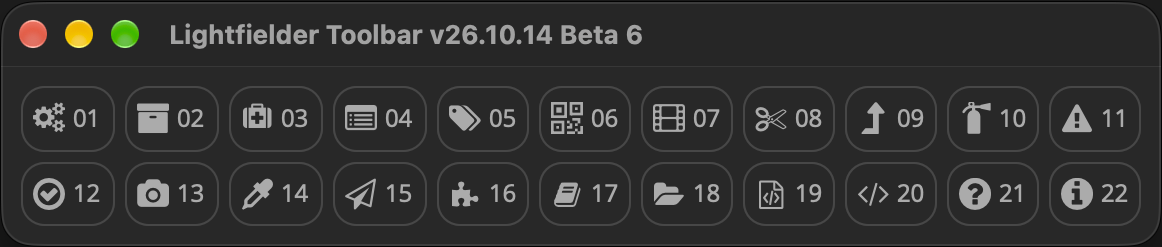
The Lightfielder Toolbar cuts down the effort needed to access the "Workspace > Scripts > Lightfielder > " menu items. It acts as a launcher interface for starting the Resolve based Python scripts.
Tip: Hold down the shift key when clicking on a toolbar item to force-reload the script. This is handy if you have edited the script and want to refresh the view to show the changes.
Tip: When the Toolbar window "X" close box is clicked, if the shift modifier key is held down at the same moment, the extra floating palette windows are force-closed at the same time, too. This makes it a quick task to de-clutter your workspace if you need to focus on something else.
Choosing a Script Editor
Tip: Hold down the Command (macOS) or Control (Win/Linux) key when clicking on a toolbar item to edit that Python script. This works if you have a script editor program defined in the Fusion page settings.
If you do not have a script editor defined, then Resolve will switch to the Fusion page, and display the Fusion settings window to allow you to customize the script editor preference.
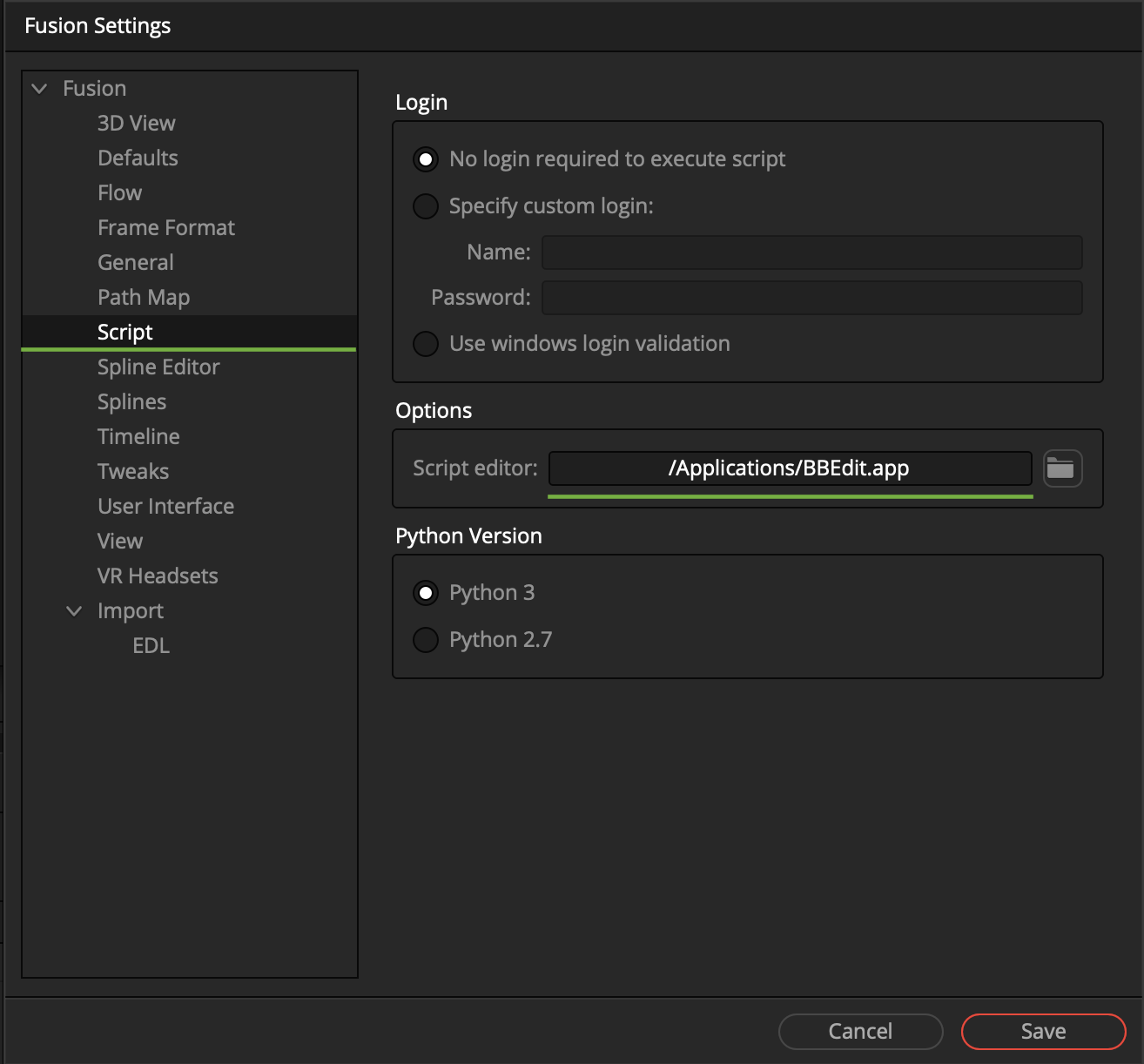
A typical value for the Script editor filepath would be something like /Applications/BBEdit.app on macOS. On Linux workstations a Script editor filepath might be set to /usr/bin/xed or /usr/bin/gedit. On Windows you might choose to use a Script editor filepath that points to a copy of VS Code or Notepad++.
This feature requires the "xdg-open" package to be installed on Linux.
macOS Settings
Lightfielder uses a lot of Python scripted tool windows since Resolve's native scripting APIs do not allow 3rd party developers to create custom user interface windows as docked panels.
If you are running Lightfielder on macOS, you will likely come across several settings that macOS has enabled by default in the System Settings that can cause usability headaches.
Avoid Entering Fullscreen Mode on macOS
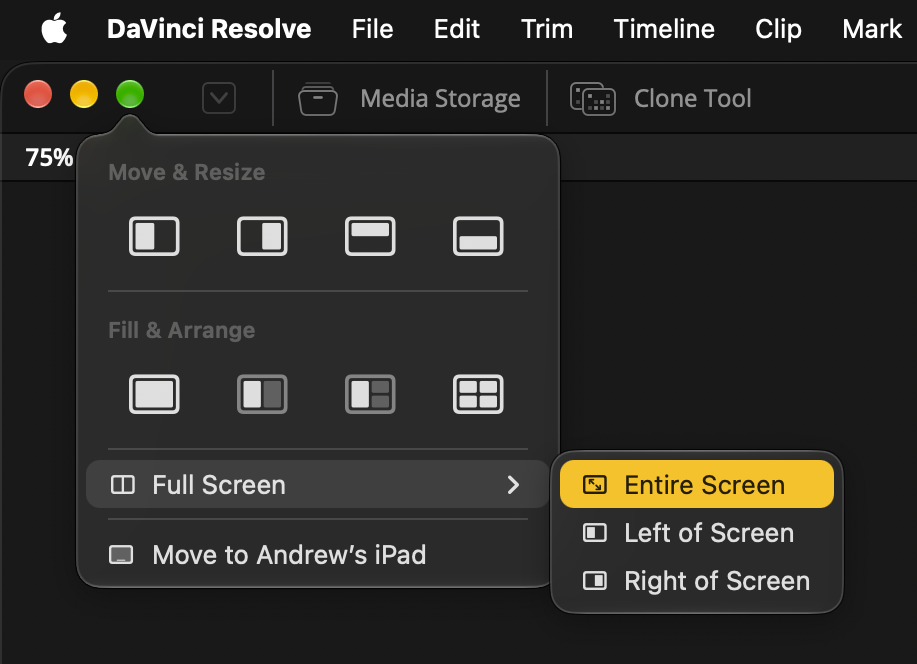
For starters, it is likely a good idea to avoid pressing the green macOS "Enter Fullscreen Mode" button on the main Resolve program window.

When 3rd party scripts open custom floating windows, macOS will attempt to force those smaller palette windows into a fullscreen state as well. This is likely not something that you would have expected to happen.
This forced palette window resizing thing typically leads to an odd user interface experience at can gett a bit confusing the first few times it occurs.
If you have absent-mindedly entered fullscreen mode with Resolve, its a good idea to turn that mode off when you start using multiple Lightfielder scripted windows as it just get a bit strange.
If you hover over the green button, newer versions of macOS can sometimes show a contextual pop-up menu.
macOS Window Snapping Events
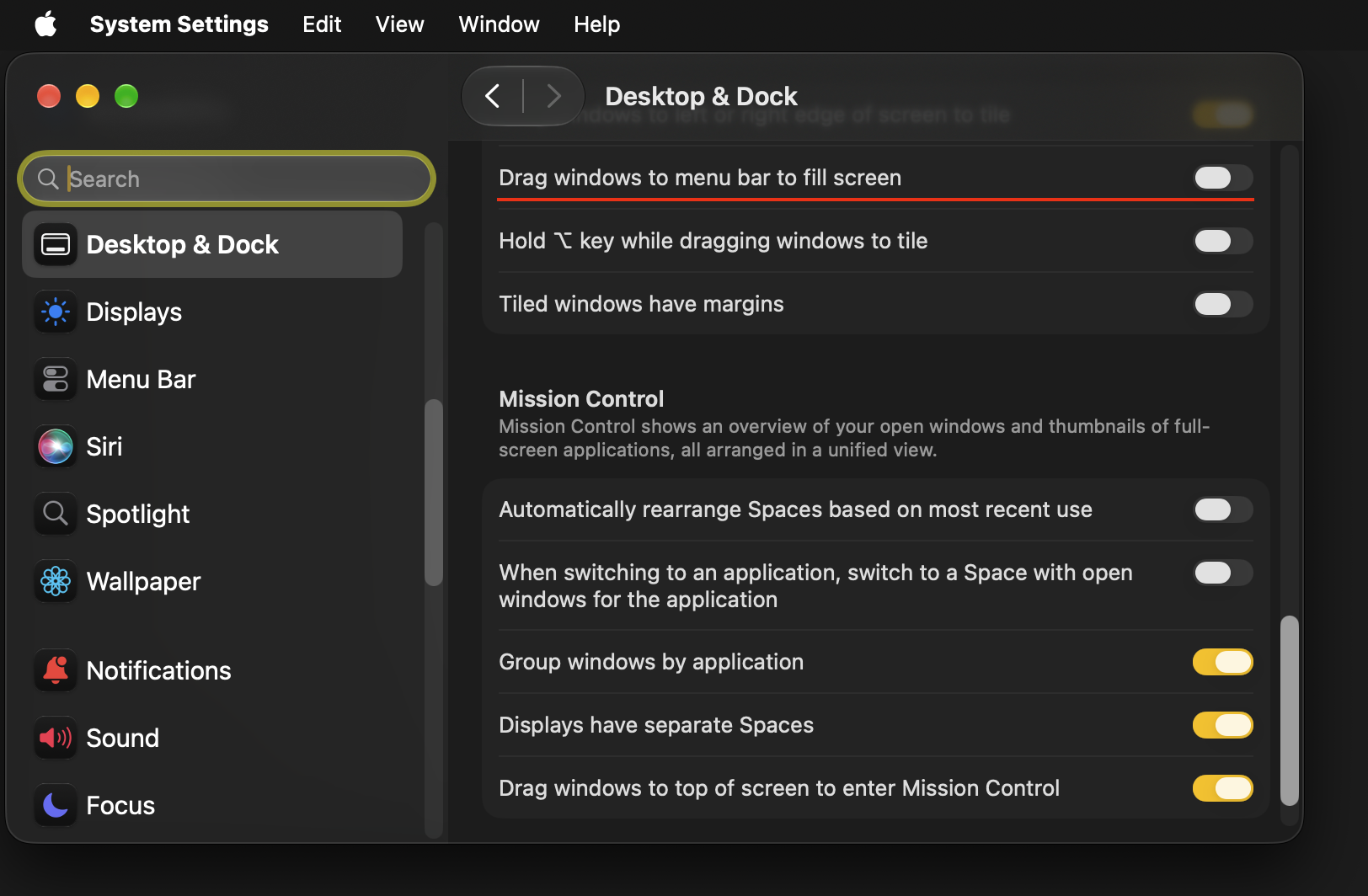
When a Lightfielder "floating window" is dragged up next to the macOS menu bar, the default settings for the control "System Settings > Desktop and Dock > Drag windows to menu bar to fill screen" will do an instant forced resize on the palette window.
Life is a lot more consistent if you turn the "Drag windows to menu bar to fill screen" option to an "Off" state. Then you can move the floating windows around and they never try to force resize the windows to take up all of the screen space on your monitor.
User Editable JSON Toolbar Settings
The Lightfielder v26.09 update is in the middle of porting the toolbar configuration data from existing in a Python script over to using a new JSON based preset system. When the toolbar code migration is completed, it will allow the preferences window to swap the active Lightfielder toolbar from a combo menu, and the user defined configuration files will also be able to choose the exact tools and icons they would like to have in their custom shelves.

Shown below is visual example of a toolbar JSON system preset file. The data comes from the default Toolbar_Default.json file that is located at:
Lightfielder:/Resolve/Scripts/Utility/Lightfielder/Presets/Toolbars/Toolbar_Default.json
The JSON based preset files allow you to customize every parameter used in the toolbar system on a per-tool level, and it also provides the ability to change the shape of the toolbar layout based upon the number of buttons displayed in a grid layout on the width and height axis.
{
	"version": 1,
	"width": 10,
	"height": 2,
	"Toolbar": {
		"Tool1": {
			"Icon": "fa-gear",
			"ScriptFile": "Lightfielder:/Resolve/Scripts/Utility/Lightfielder/01 Preferences.py",
			"TargetID": "PrefsWin",
			"Text": "01",
			"Tooltip": "01 Preferences"
		},
		"Tool2": {
			"Icon": "fa-archive",
			"ScriptFile": "Lightfielder:/Resolve/Scripts/Utility/Lightfielder/02 Bin Templates.py",
			"TargetID": "BinWin",
			"Text": "02",
			"Tooltip": "02 Bin Templates"
		},
		"Tool3": {
			"Icon": "fa-medkit",
			"ScriptFile": "Lightfielder:/Resolve/Scripts/Utility/Lightfielder/03 Shot Validator.py",
			"TargetID": "ShotlogValidatorWin",
			"Text": "03",
			"Tooltip": "03 Shot Validator"
		},
		"Tool4": {
			"Icon": "fa-list-alt",
			"ScriptFile": "Lightfielder:/Resolve/Scripts/Utility/Lightfielder/04 Import Footage.py",
			"TargetID": "ImportFootageWin",
			"Text": "04",
			"Tooltip": "04 Import Footage"
		},
		"Tool5": {
			"Icon": "fa-tags",
			"ScriptFile": "Lightfielder:/Resolve/Scripts/Utility/Lightfielder/05 Metadata Sync.py",
			"TargetID": "MetadataWin",
			"Text": "05",
			"Tooltip": "05 Metadata Sync"
		},
		"Tool6": {
			"Icon": "fa-qrcode",
			"ScriptFile": "Lightfielder:/Resolve/Scripts/Utility/Lightfielder/06 Still Frames Export.py",
			"TargetID": "CalibrationWin",
			"Text": "06",
			"Tooltip": "06 Still Frames Export"
		},
		"Tool7": {
			"Icon": "fa-film",
			"ScriptFile": "Lightfielder:/Resolve/Scripts/Utility/Lightfielder/07 Create EDLs.py",
			"TargetID": "CreateEDLWin",
			"Text": "07",
			"Tooltip": "07 Create EDLs"
		},
		"Tool8": {
			"Icon": "fa-cut",
			"ScriptFile": "Lightfielder:/Resolve/Scripts/Utility/Lightfielder/08 Batch Trim.py",
			"TargetID": "TrimWin",
			"Text": "08",
			"Tooltip": "08 Batch Trim"
		},
		"Tool9": {
			"Icon": "fa-fire",
			"ScriptFile": "Lightfielder:/Resolve/Scripts/Utility/Lightfielder/09 EDL Checker.py",
			"TargetID": "EDLChecker",
			"Text": "09",
			"Tooltip": "09 EDL Checker"
		},
		"Tool10": {
			"Icon": "fa-triangle",
			"ScriptFile": "Lightfielder:/Resolve/Scripts/Utility/Lightfielder/10 Log Viewer.py",
			"TargetID": "LogViewerWin",
			"Text": "10",
			"Tooltip": "10 Log Viewer"
		},
		"Tool11": {
			"Icon": "fa-level-up",
			"ScriptFile": "Lightfielder:/Resolve/Scripts/Utility/Lightfielder/11 EDL Stack Swizzle.py",
			"TargetID": "EDLStackSwizzleWin",
			"Text": "11",
			"Tooltip": "11 EDL Stack Swizzle"
		},
		"Tool12": {
			"Icon": "fa-check-circle",
			"ScriptFile": "Lightfielder:/Resolve/Scripts/Utility/Lightfielder/12 Video Track Solo.py",
			"TargetID": "VideoTrackSoloWin",
			"Text": "12",
			"Tooltip": "12 Video Track Solo"
		},
		"Tool13": {
			"Icon": "fa-camera",
			"ScriptFile": "Lightfielder:/Resolve/Scripts/Utility/Lightfielder/13 Camera Contact Sheet.py",
			"TargetID": "CCSWin",
			"Text": "13",
			"Tooltip": "13 Camera Contact Sheet"
		},
		"Tool14": {
			"Icon": "fa-eyedropper",
			"ScriptFile": "Lightfielder:/Resolve/Scripts/Utility/Lightfielder/14 Grade Automation.py",
			"TargetID": "GradeAutomationWin",
			"Text": "14",
			"Tooltip": "14 Grade Automation"
		},
		"Tool15": {
			"Icon": "fa-paper-plane",
			"ScriptFile": "Lightfielder:/Resolve/Scripts/Utility/Lightfielder/15 EDL Export.py",
			"TargetID": "EDLExportWin",
			"Text": "15",
			"Tooltip": "15 EDL Export"
		},
		"Tool16": {
			"Icon": "fa-puzzle-piece",
			"ScriptFile": "Lightfielder:/Resolve/Scripts/Utility/Lightfielder/16 Extensions.py",
			"TargetID": "ExtensionsWin",
			"Text": "16",
			"Tooltip": "16 Extensions"
		},
		"Tool17": {
			"Icon": "fa-folder-open",
			"ScriptFile": "Lightfielder:/Resolve/Scripts/Utility/Lightfielder/17 Open Lightfielder Folder.py",
			"TargetID": "Docs",
			"Text": "17",
			"Tooltip": "17 Open Lightfielder Folder"
		},
		"Tool18": {
			"Icon": "fa-file-code-o",
			"ScriptFile": "Lightfielder:/Resolve/Scripts/Utility/Lightfielder/18 Media Command.lua",
			"TargetID": "MediaCommandWin",
			"Text": "18",
			"Tooltip": "18 Media Command"
		},
		"Tool19": {
			"Icon": "fa-file-code-o",
			"ScriptFile": "Lightfielder:/Resolve/Scripts/Utility/Lightfielder/19 Console.py",
			"TargetID": "fa-file-code-o",
			"Text": "19",
			"Tooltip": "19 Show Console"
		},
		"Tool20": {
			"Icon": "fa-code",
			"ScriptFile": "Lightfielder:/Resolve/Scripts/Utility/Lightfielder/20 Documentation.py",
			"TargetID": "Docs",
			"Text": "20",
			"Tooltip": "20 Documentation"
		}
	}
}